8 Best Thermal Camera for iPhone (October 2026)
The best iPhone thermal cameras include the TOPDON TC001 Max for mixed iPhone households, the FLIR ONE Pro for guided home inspections, and the TOPDON TC002C Duo for sharing across devices.
On this page (8 sections)
- Which thermal camera for iPhone is best for each use?
- How we compared these iPhone thermal cameras
- How do you choose the best thermal camera for iPhone?
- How should you set up an iPhone thermal camera?
- How do you get useful results around the home?
- What mistakes make iPhone thermal images misleading?
- How do you care for a phone thermal camera?
- Which iPhone thermal camera should you choose?
The best thermal camera for iPhone is the TOPDON TC001 Max for supported phones, thanks to its dual-lens imaging and included USB-C and Lightning adapters. Choose the FLIR ONE Pro for guided home inspections or the Thermal Master P3 for close-up circuit work.
Buy for the task you need to complete, starting with your phone connection. Scanning a ceiling for an unusual patch and inspecting a tiny electronic component place different demands on a camera.
For a wider overview, see our thermal camera buyer’s guide. If you’re unsure what your phone can do alone, read does an iPhone have a thermal camera?.
Our picks at a glance
-
1

-
2
-
3

Which thermal camera for iPhone is best for each use?
The TC001 Max suits mixed iPhone households, while the FLIR ONE Pro suits homeowners who want help following an inspection sequence. The remaining picks serve shared-device use, quick checks, broad wall scans and close component work.
TOPDON TC001 Max
- Dual-lens thermal and visible-light imaging
- USB-C and Lightning adapters included
- 256 × 192 native IR with 512 × 384 TISR
- Measures from -20°C to 550°C
Included adapters suit households with supported USB-C and Lightning iPhones. A separate visible-light camera adds outlines that help you locate heat patterns.
Pros
- Includes USB-C and Lightning adapters
- Dual-lens imaging adds visible context
- No camera charging or wireless pairing
Cons
- Exact phone compatibility still needs checking
- No manual macro focus specified
The TOPDON TC001 Max is the strongest general choice when more than one supported iPhone may use the camera. Both connector adapters are included, which helps households with a mix of older and newer phones.
Its native 256 × 192 sensor feeds TOPDON’s TISR processing for 512 × 384 images. A separate visible-light camera adds context, making it easier to match a thermal patch to a vent, frame or nearby object.
The TopInfrared and TopView tools support photos, video, image rotation and temperature graphs. Those features suit checks where you want to record a changing pattern rather than save one unexplained image.
It measures from -20°C to 550°C and needs no separate charging or wireless pairing. That combination fits home maintenance, garage checks and workshop troubleshooting.
Choose it for flexible connections and visible context. Skip it if your main task is inspecting tiny components at very close range, where the P3’s adjustable macro focus is more relevant.
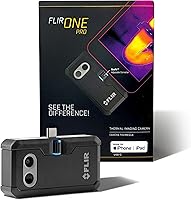
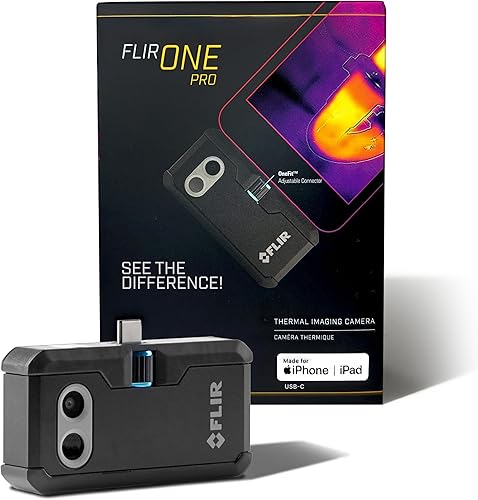
FLIR ONE Pro
- For USB-C iPhones, including iPhone 15 and newer
- 160 × 120 native IR with 480 × 360 VividIR
- MSX adds visible-light edge detail
- In-app step-by-step inspection guide
Step-by-step app guidance suits homeowners who want a clear inspection sequence. MSX adds edges and outlines to help identify the surface behind a thermal pattern.
Pros
- Step-by-step inspection guide
- MSX visible-light detail
- FLIR rates it for a 1.5 m drop
Cons
- This version requires a USB-C iPhone
- Accuracy specification has defined operating conditions
The FLIR ONE Pro suits a homeowner who wants a clear inspection sequence. Its app includes step-by-step guides for common checks, helping you approach a window, room or HVAC concern in an organized way.
This version connects to USB-C iPhones, including iPhone 15 and newer. Its 160 × 120 native sensor works with VividIR processing to create 480 × 360 images.
MSX adds visible-light edges and outlines to the thermal view. That context helps distinguish the edge of a cabinet or vent from a temperature boundary.
FLIR specifies accuracy of ±3°C or ±5% with the camera at 15°C to 35°C and the scene at 5°C to 120°C. It also rates the camera for a 1.5 m drop.
Buy it for guided home checks and recognizable image detail. Skip this version if you use a Lightning iPhone, and read FLIR ONE vs FLIR ONE Pro if you’re deciding how much thermal detail you need.
TOPDON TC002C Duo
- Supports compatible USB-C iOS, Android and Windows devices
- 256 × 192 native IR with 512 × 384 TISR
- 25 Hz refresh rate
- Photo and video recording
A practical shared camera for supported USB-C phones and Windows devices. Check every intended device before choosing it for a household or workshop.
Pros
- Cross-platform device support
- Photo and video recording
- Real-time temperature waveforms
Cons
- Mac and Android 16 are identified as temporarily incompatible
- Lightning adapter support needs confirmation
The TOPDON TC002C Duo is a practical choice for sharing across supported USB-C devices. It supports compatible iOS, Android and Windows devices, so one camera can serve several users.
Its native 256 × 192 thermal image is enhanced to 512 × 384 through TISR. The 25 Hz refresh rate supports a responsive view while you move across a surface.
Photo and video capture help document a concern, while temperature waveforms show changes over time. That makes the Duo useful for watching equipment warm up or comparing a repeated operating cycle.
The temperature range is -20°C to 550°C. TOPDON identifies Mac and Android 16 devices as temporarily incompatible, so check every intended device before treating it as a shared tool.
Choose it for an established group of compatible USB-C devices. Skip it if you mainly use a Lightning iPhone and want a confirmed adapter arrangement included from the start.
Thermal Master P1

- USB-C; Lightning adapter sold separately
- 160 × 120 native IR with 320 × 240 X³ processing
- High and low temperature alarms
- Adjustable emissivity, ambient temperature and distance
A 17 g camera with alarms and adjustable measurement settings for short, focused checks. A zipper case and extension cable are included.
Pros
- Small camera body
- Temperature alarms and isotherm mode
- Case and 50 cm extension cable included
Cons
- Lightning adapter sold separately
- Digital zoom cannot add native sensor detail
The Thermal Master P1 suits quick workshop checks where carrying a small attachment matters. The camera weighs 17 g, and its included zipper case gives you somewhere to store it between jobs.
A native 160 × 120 image becomes 320 × 240 through X³ processing. High and low temperature alarms and isotherm mode help highlight a chosen threshold or temperature band.
The P1 also offers 15× digital zoom. Use that to enlarge the display, while remembering that magnification cannot recover detail the sensor did not capture.
Its range runs from -20°C to 600°C, with specified accuracy of ±3.6°F. Adjustable emissivity, ambient temperature and distance settings give you control over factors that affect readings.
A 50 cm extension cable is included, but a Lightning adapter is sold separately. Choose it for compact carrying and focused checks; skip it if you need manual macro focus or want an older iPhone connection complete in the box.
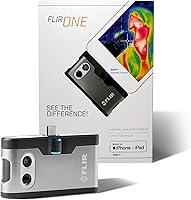
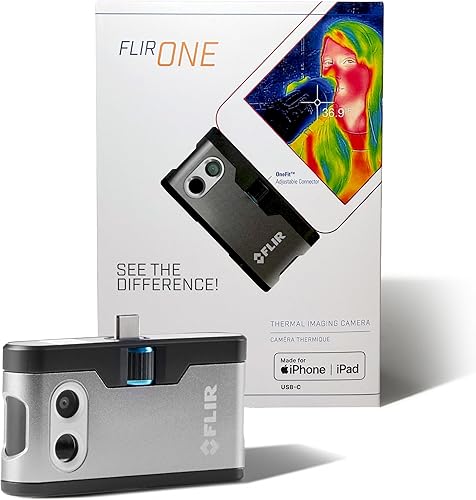
FLIR ONE
- For USB-C iPhones, including iPhone 15 and newer
- 80 × 60 native IR with 240 × 180 VividIR
- MSX adds visible-light edge detail
- In-app inspection guides
FLIR's guided inspection approach suits occasional checks of broad temperature patterns. Choose the Pro instead when smaller thermal features matter.
Pros
- Guided checks in the app
- MSX adds recognizable outlines
- Adjustable OneFit connector
Cons
- This version requires a USB-C iPhone
- Lowest native resolution in this group
The FLIR ONE fits occasional home scans where you want guided checks and recognizable outlines. It shares the FLIR app’s inspection-guide approach with the Pro but starts with less thermal detail.
Its native sensor is 80 × 60, with VividIR processing to 240 × 180. MSX adds visible edges, helping you place a broad warm or cool area within the room.
That makes it a reasonable choice for looking at general patterns around windows, doors and larger surfaces. For small thermal features, the Pro’s higher native resolution gives it a clearer reason to be on your shortlist.
This version requires a USB-C iPhone. The adjustable OneFit connector helps accommodate phone cases, though the connection still needs to seat securely.
Choose it if occasional broad scans are your main purpose. Skip it for fine component work, and read the FLIR ONE Pro review before settling on the lower-resolution option.
TOPDON TC001 Mini

- Compatible iOS, Android and Windows devices
- 96 × 96 native IR with TISR to 384 × 384
- TopFix AI image explanations
- Measurement areas, alarms and reports
Inspection guides and TopFix AI offer possible explanations for thermal patterns. Measurement tools help document an area for further investigation.
Pros
- Inspection guides and AI explanations
- Custom measurement points and areas
- Thermal report generation
Cons
- Confirm the required iPhone adapter
- AI suggestions need independent checks
The TOPDON TC001 Mini suits DIY users who want help interpreting what to investigate next. TopFix AI supplies plain-language explanations, possible causes and suggested next steps alongside built-in inspection guides.
Its native 96 × 96 sensor produces 384 × 384 images through TISR processing. Keep those figures separate when comparing it with cameras that start with more native pixels.
Custom measurement points and areas let you examine a chosen part of the image. Temperature limits, alarms and report tools also help turn an interesting pattern into a record you can revisit.
The Mini supports compatible iOS, Android and Windows devices. Confirm your exact iPhone connection and required adapter before choosing it.
Buy it if guided interpretation matters more than fine thermal detail. Skip it if your main goal is resolving small components, and check AI suggestions against the surface, operating conditions and other evidence before acting on them.
GOYOJO Thermal Camera

- USB-C iPhone 15, 16 and 17 series
- 192 × 192 IR resolution
- 50° field of view
- THG Start app
The wide view suits room surfaces such as walls, floors and ceilings. A thick phone case can prevent a stable connection.
Pros
- Wide view for broad surfaces
- No batteries or wireless pairing
- Compact camera body
Cons
- Thick cases may interrupt the connection
- Less suited to framing tiny components
The GOYOJO Thermal Camera suits broad scans of walls, ceilings and floors. Its 50° field of view helps fit more of a surface into the frame when you have limited room to step back.
The camera has 192 × 192 IR resolution and measures from -20°C to 400°C. It uses the THG Start app and supports the USB-C iPhone 15, 16 and 17 series.
Its wide view is useful for locating an area that differs from its surroundings. Move closer for a second image when the first scan reveals a smaller patch worth examining.
GOYOJO notes that thick phone cases can cause unstable connections. Remove a case that blocks full insertion rather than forcing the connector.
Choose it for supported phones and room-surface surveys. Skip it if your priority is tiny components or especially hot equipment beyond its measurement range, where framing and range requirements point toward other models here.
Thermal Master P3

- USB-C connector and included Lightning adapter
- Manual focus down to 8 mm macro
- 256 × 192 native IR with 512 × 384 X³ processing
- 19 in extension cable included
Manual macro focus suits small components and nearby heat patterns. The extension cable helps position the camera while keeping the phone screen visible.
Pros
- Adjustable focus for small components
- Lightning adapter and extension cable included
- Photo, video and report tools
Cons
- Focus needs adjustment as distance changes
- More setup than a quick broad surface scan
The Thermal Master P3 is the specialist choice for close-up circuit work. Manual focus down to 8 mm macro helps you examine small components rather than rely on enlarging a distant image.
Its native 256 × 192 sensor feeds X³ processing for 512 × 384 images. Adjust focus whenever you change working distance, and judge the thermal detail rather than the sharpness of a visible overlay.
A Lightning adapter and 19 in extension cable are included. The cable lets you position the camera separately from the phone, which helps when direct attachment would hide the screen or restrict the viewing angle.
The app supports alarms, picture-in-picture view, photos, video and reports. Thermal Master also specifies IP54 protection against dust and splashes.
Choose it when focus control solves a real inspection problem. Skip it if you only want quick room scans without lens adjustment, and leave exposed live electrical work to a qualified professional.
How we compared these iPhone thermal cameras
We prioritized phone compatibility, useful thermal detail and task-specific controls. A camera earns its place by making a common iPhone inspection easier, from a first home scan to documenting a small component.
Native resolution matters because it describes the starting thermal image. Visible-light detail, image processing and app guidance then affect how easily you can understand and record what you see.
The order favors general iPhone use. A specialist model such as the P3 can still be the better choice for a particular job, even though it appears lower in this roundup.
| Product | Best for | Connection | Native IR resolution | Temperature range | Our score |
|---|---|---|---|---|---|
| TOPDON TC001 Max | mixed iPhone households | USB; USB-C and Lightning adapters included | 256 × 192; TISR to 512 × 384 | -20°C to 550°C | 8.6 |
| FLIR ONE Pro | guided home inspections | USB-C iPhones | 160 × 120; VividIR to 480 × 360 | 8.5 | |
| TOPDON TC002C Duo | sharing across devices | USB-C | 256 × 192; TISR to 512 × 384 | -20°C to 550°C | 8.3 |
| Thermal Master P1 | quick workshop checks | USB-C; separate adapter for Lightning iPhones | 160 × 120; X³ to 320 × 240 | -20°C to 600°C | 8.0 |
| FLIR ONE | occasional home scans | USB-C iPhones | 80 × 60; VividIR to 240 × 180 | 7.6 | |
| TOPDON TC001 Mini | DIY troubleshooting guidance | Compatible phone or Windows device; confirm iPhone adapter | 96 × 96; TISR to 384 × 384 | -20°C to 550°C | 7.4 |
| GOYOJO Thermal Camera | scanning whole walls | USB-C; iPhone 15, 16 and 17 series | -20°C to 400°C | 7.2 | |
| Thermal Master P3 | close-up circuit work | USB-C; Lightning adapter included | 256 × 192; X³ to 512 × 384 | -20°C to 600°C | 7.0 |
How do you choose the best thermal camera for iPhone?
Choose by connection first, target size second and workflow third. Once those fit, compare measurement controls and durability against where you expect to use the camera.
Which thermal camera fits your iPhone?
Match the camera to your exact phone model, port and supported app. A connector that fits physically does not prove the camera will communicate with the phone.
For Lightning phones, confirm a supported adapter combination. For shared use, check each phone and computer separately rather than assume that one successful connection covers the rest.
Case clearance also matters. A connector should seat fully without pressure on the attachment, phone port or case edge.
How much native resolution do you need?
Favor more native thermal detail when small targets matter or you cannot move closer. Broad room patterns are less demanding than separating neighboring electronic components.
Keep native and processed resolution in separate columns when comparing cameras. A large processed image can look smoother without having the same starting detail as a higher-resolution sensor.
Working distance changes the result too. A small target that occupies only a few pixels cannot provide a detailed thermal map, even if you enlarge the image afterward.
Our thermal camera resolution guide explains how resolution fits with range and other selection points.
Do focus, field of view and sensitivity matter?
Choose a wide view for large surfaces and close-focus control for small nearby targets. Trying to use one framing approach for both jobs can make inspections awkward.
Sensitivity describes the ability to distinguish small temperature differences. It is separate from absolute temperature accuracy, which concerns how close a reading is to the actual surface temperature.
The P3’s specified sensitivity is ≤35 mK; several other models here specify about 40 mK. Focus, distance and surface conditions still matter when deciding whether a subtle pattern is meaningful.
Which app tools will you actually use?
Prioritize guides for learning, recording for documentation and measurement tools for repeat comparisons. A long feature list helps only when those controls support your work.
Temperature alarms draw attention to a selected threshold. Isotherms highlight a chosen band, while graphs help track changes that a single saved image would miss.
If you need records for a repair visit, check that you can save an image with useful temperature context. Name the file by room, surface and date so you can find it later.
What temperature range and accuracy do you need?
Choose a range that covers the surfaces you expect to measure. A higher maximum adds little value if your work is limited to room surfaces and ordinary heating patterns.
Read accuracy conditions carefully, especially when working in a cold garage or hot outdoor area. Measurement resolution, sensitivity and accuracy are different, so a finely displayed number does not promise an equally small measurement error.
For house-focused work, our thermal camera home inspection guide helps you compare phone attachments with other camera formats.
How should you set up an iPhone thermal camera?
Install the supported app, connect the camera securely and check a familiar surface before starting your inspection. Make sure you can capture and reopen an image before moving into an awkward space.
- Prepare the phone. Charge it, allow room for photos or video, and confirm the app opens normally.
- Fit the connector. Use the supported adapter and remove any case that prevents full seating.
- Grant needed permissions. Allow the app access required for camera operation and saving files.
- Let the camera settle. Follow its startup and calibration prompts, especially after a large change in surroundings.
- Set useful units. Choose Celsius or Fahrenheit and learn where the scale and measurement markers appear.
- Capture a reference. Save a normal photo and thermal image of the same area so the location stays clear.
A securely supported cable can improve positioning where one is included. Keep slack in it so moving the phone does not pull the camera or strain the port.
During use, hold the camera steady and move slowly enough to understand each pattern. A fast sweep may find an unusual area, but a paused second view is better for documentation.
How do you get useful results around the home?
Compare similar surfaces under similar conditions, then investigate differences with another method. A thermal image shows surface temperature patterns, so the inspection conditions shape what becomes visible.
Make heat-loss checks when a difference exists
Inspect insulation and drafts when indoor and outdoor temperatures differ enough to reveal a pattern. A wall with little temperature contrast may offer few useful clues even when a problem exists.
Avoid judging one sun-warmed patch against a shaded area. Recent sunlight, heating airflow and furniture against a wall can all change surface temperatures.
Our guide to finding drafts and insulation gaps with a thermal camera explains how to choose conditions and follow up on a suspicious pattern.
Confirm suspected moisture separately
Use a cool or warm patch to decide where to investigate, then confirm moisture with an appropriate check. Damp material can affect surface temperature, but airflow and missing insulation can create similar patterns.
Record the location and surrounding conditions before making repairs. A dry comparison area on the same material is more useful than comparing unrelated surfaces across the room.
Compare equipment in a repeatable state
For HVAC or mechanical checks, record whether the equipment is starting, running steadily or cooling down. Comparing different operating states can make normal behavior look like a change.
Keep the viewing angle and distance similar for follow-up images. A warm housing also does not guarantee the temperature of an internal part or identify the cause of excess heat.
What mistakes make iPhone thermal images misleading?
The most common mistakes are reading colors as fixed temperatures, measuring reflections and treating patterns as diagnoses. Correct those habits before using an image to choose a repair.
Reading color without the temperature scale
A bright color means warmer within the displayed scale, not automatically dangerous. Automatic scaling can make a small difference look dramatic when the scene has little temperature variation.
Check the scale before comparing images from different rooms. Our guide to what thermal image colors mean explains how palettes and temperature spans change the view.
Measuring shiny surfaces as if they were painted walls
Polished metal can reflect thermal radiation from surrounding objects. An apparent hot area may be a reflection rather than the surface temperature you intended to measure.
Change your viewing angle and compare nearby materials. If a precise reading matters, use a suitable measurement method and correct surface settings instead of trusting a single spot value.
Assuming visible edges are thermal detail
Visible-light overlays help you identify objects, but a crisp outline does not add native thermal pixels. Inspect the heat pattern itself when judging a small feature.
Also avoid reading tiny temperature differences as proof of a fault. A repeatable pattern under controlled conditions carries more meaning than one isolated number.
How do you care for a phone thermal camera?
Protect the lens, connector and phone port during storage and use. Disconnect the attachment before putting the phone in a pocket or bag so the camera cannot act as a lever on the port.
Keep the lens free of fingerprints and dust. Follow the camera’s cleaning instructions, and avoid rubbing it with clothing or applying household cleaners.
Use a case where one is supplied, and keep adapters together. Store the camera dry and away from loose tools that could scratch the lens or damage the plug.
Do not assume a model is waterproof because another camera has a protection specification. Follow each camera’s limits, and avoid pointing the sensor at the sun or intense heat sources beyond its permitted use.
Which iPhone thermal camera should you choose?
Choose the best thermal camera for iPhone for your actual task, with compatibility settled before image features. A camera that suits your target and routine is more useful than one chosen for its largest processed resolution number.
Pick the TC001 Max for mixed supported iPhones and visible context, or the FLIR ONE Pro for guided home checks. Choose the Duo for sharing across compatible devices, and the P1 for a small workshop companion.
The standard FLIR ONE fits occasional broad scans, while the Mini suits DIY users who value interpretation tools. Choose GOYOJO for whole-wall framing and the P3 when manual close focus is central to the job.
Before your first inspection, decide what evidence would confirm the pattern you find. Follow our guide to using a thermal camera at home to plan the scan and its next steps.
Our top 3 picks at a glance
-
1
-
2
-
3
Frequently asked questions
Does an iPhone have a built-in thermal camera?
No. An iPhone needs an external thermal sensor to display a thermal image; its normal cameras cannot provide that view.
Choose an attachment supported by your phone and app, with the correct connector.
Our guide to whether an iPhone has a thermal camera explains the difference.
Will a USB-C thermal camera work with every iPhone?
No. The camera must support your exact iPhone and its software, even when the connector fits.
Older Lightning iPhones also need a supported adapter where the camera allows one.
A generic adapter that fits physically does not guarantee compatibility, so confirm the camera, phone and adapter combination before buying.
Can an iPhone thermal camera see through walls?
No. A thermal camera reads the wall's surface temperature, not objects hidden behind it.
A warm pipe or insulation gap may affect that surface, but the pattern needs further investigation.
Read what thermal cameras can and cannot see through before using an image to decide where to open a wall.
What can you use an iPhone thermal camera for?
Use it to compare surface temperatures around windows, insulation, HVAC equipment, plumbing and vehicles.
A thermal pattern helps you choose where to investigate; it does not prove a leak or electrical fault. For a repeatable first inspection, follow our guide to using a thermal camera at home.
Do thermal camera resolution numbers tell the whole story?
No. Native sensor resolution, focus, viewing angle and working distance all affect how much useful detail you capture.
Processing can improve an image's appearance without adding native sensor pixels.
Our thermal camera resolution guide explains how to compare those figures with measurement range and the work you plan to do.