How to Use a Thermal Imaging Camera at Home
To use a thermal imaging camera at home, compare similar surfaces, check the temperature scale, and scan unusual patterns from another angle. Save useful images and confirm suspected drafts, moisture, or faults with a separate check.
On this page (10 sections)
- How do you use a thermal imaging camera at home?
- What settings and conditions should you check first?
- How can a thermal camera help you check for drafts?
- Can a thermal camera find insulation gaps?
- Can a thermal camera find water leaks?
- How do you check heating and cooling patterns?
- What mistakes make thermal images misleading?
- Which thermal camera should you choose for home use?
- How should you save findings and care for the camera?
- How should you decide what to do next?
To use a thermal imaging camera at home, compare similar surfaces, check the temperature scale, and view unusual patterns from another angle. Save useful images, then confirm suspected drafts, moisture, or faults with a separate check.
Start with one question, such as why a window edge feels cold. A focused scan is easier to interpret than a folder full of unexplained bright patches.
How do you use a thermal imaging camera at home?
Follow a wide scan, close comparison, and follow-up check. Thermal images show surface temperature patterns, so use them to choose where to investigate.
- Pick an accessible target, such as a window frame, ceiling, or floor.
- Scan the whole area to understand the surrounding pattern.
- Compare the suspect spot with a similar nearby surface.
- Move to another angle and see whether the pattern stays in place.
- Save an image and record the conditions.
- Confirm the concern with a suitable check before planning repairs.
Move slowly enough to keep the target clear. Step closer when safe if a small feature fills too little of the image, rather than relying on digital zoom to reveal detail the sensor did not capture.
How to use a thermal imaging camera for a fair comparison
Keep distance, angle, surface material, and room conditions as consistent as possible. Comparing painted drywall with shiny metal tells you less than comparing two sections of the same wall.
Avoid blocking the target with your body or touching it before scanning. Your body heat, shadow, or hand can change what appears in the image.
What settings and conditions should you check first?
Check power, temperature units, palette, and measurement settings before scanning. Read the camera's instructions and let it settle after moving between spaces with different temperatures.
For insulation and draft checks, choose a time when indoor and outdoor temperatures differ clearly. Recent sunshine, rain, or changing weather can leave patterns that hide or imitate a building issue.
Emissivity describes how well a surface emits infrared energy. Use guidance for the material if your camera offers this setting; an unsuitable value can distort the temperature reading.
Start with one clear palette and check the displayed temperature scale. If the camera offers a fixed scale, keeping it consistent can make before-and-after images easier to compare.
Check storage space before a room-by-room scan. For a phone attachment, install the required app and confirm that the connector fits with your phone case in place.
How can a thermal camera help you check for drafts?
Scan window frames, door edges, and wall joints for surface patterns that differ from nearby areas. Air leakage can cool or warm surrounding materials, but the image does not directly show moving air.
Compare similar windows under the same conditions. A cold strip near glass may reflect normal heat loss through the frame rather than an open gap.
Confirm a suspected draft with a suitable air-leak check or an energy professional. Follow how to find drafts and insulation gaps with a thermal camera for a focused approach.
Can a thermal camera find insulation gaps?
A thermal scan can reveal patterns consistent with uneven insulation, but it cannot show the insulation itself. Look for differences between similar wall or ceiling sections.
Regular stripes may follow framing, while an isolated patch may come from sunlight, moisture, or nearby heating. Don't assume every visible stud line means insulation is missing.
Move furniture away where practical and allow surface temperatures to settle before comparing covered and uncovered areas. See whether thermal imaging is worth it for a home inspection when deciding whether to hire help.
Can a thermal camera find water leaks?
A thermal camera can help locate areas worth checking for moisture, but it cannot confirm water by itself. Evaporation and temperature differences can create clues, while some wet areas show little contrast.
Scan the visible surface and compare it with nearby dry-looking material. Confirm a suspect patch with an appropriate moisture meter or a qualified professional.
Act on active water or visible damage without waiting for a useful thermal pattern. Our guide to thermal cameras for finding water leaks explains where this approach helps.
How do you check heating and cooling patterns?
Compare vent surfaces, nearby walls, and heated floors while the system runs under steady conditions. The camera reads surfaces rather than measuring the temperature or movement of the air.
Give the system time to affect the surfaces before comparing rooms. Note the thermostat setting and operating mode so later images have useful context.
Keep equipment covers closed and avoid moving parts or hot surfaces. Record uneven patterns for an HVAC professional instead of adjusting equipment based on an image alone.
What mistakes make thermal images misleading?
The biggest mistakes are reading colors without the scale and treating reflections as real hot spots. Red and blue only represent positions within the selected palette and temperature range.
An automatic scale can make a small temperature difference look dramatic. Check the numbers before deciding that one image shows a larger problem than another.
Shiny metal and glass can reflect infrared energy from you or nearby objects. Change your viewing angle; a patch that moves or disappears may be a reflection.
A thermal camera also cannot see through ordinary window glass or walls. Read what the colors on a thermal camera mean, how a thermal imaging camera works, and whether a thermal camera can see through walls for those limits.
Which thermal camera should you choose for home use?
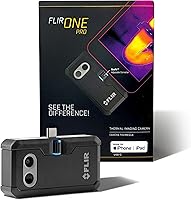
Choose by screen preference, image detail, and how you will save findings. A dedicated handheld keeps scanning separate from your phone, while a phone attachment suits readers who prefer app controls.
Compare native infrared resolution before enhanced output figures. Image enhancement changes the displayed image, but it does not add physical detector pixels.
For more help weighing those differences, read how to choose thermal camera resolution and range. A higher maximum temperature matters only if your intended work needs it.
TOPDON TC004 Handheld for frequent scans and reports
Choose the TC004 if you want a dedicated screen and a practical way to document repeated inspections. Its 256 × 192 native infrared resolution, enhanced up to 512 × 384, gives it the highest native pixel count among these three options.
The built-in red laser pointer helps match the image to the physical target. Keep it away from eyes and reflective surfaces, and remember that it does not mark every pixel in the thermal image.
Its 64GB storage holds images and videos, while Wi-Fi transfers files to the TopInfrared app for analysis and reports. Skip it if you mainly want a pocket attachment for occasional checks.
TOPDON TC004 Mini for occasional household checks
Choose the TC004 Mini for a compact dedicated camera that saves photos without tying up your phone. Its 128 × 128 native resolution, enhanced to 240 × 240, makes it better suited to broad household patterns than small, distant targets.
Temperature alerts can trigger an automatic photo, and manual capture lets you record other findings. TOPDON claims up to 15 hours of runtime; the package includes a charging cable but no charging head.
Skip it if detailed documentation and finer native image detail are your main priorities. The larger TC004 is the stronger fit for that work.
Thermal Master P1 for phone-based scanning
Choose the P1 if you want a small attachment and prefer viewing images through an app. It uses 160 × 120 native infrared resolution, enhanced to 320 × 240, and includes adjustable emissivity, ambient temperature, and distance settings.
It supports USB-C devices running iOS, Android, or Windows through the Thermal Master app. A Lightning iPhone requires a separate Type-C to Lightning adapter, so confirm your exact device connection before ordering.
Skip it if you want independent controls and a dedicated display. For phone-specific background, see whether an iPhone has a thermal camera.
How should you save findings and care for the camera?
Save the image, location, and conditions together so another person can understand the concern. Include a normal photo for context if your thermal image makes the location hard to recognize.
Record the date, room, heating or cooling status, and any recent sun or rain. Repeat scans from the same position under similar conditions when checking a change.
Keep the lens clean using the method in the manual, and store the camera dry in a protective case. Avoid touching the lens or forcing a phone connector, and follow the charging instructions.
How should you decide what to do next?
When learning how to use a thermal imaging camera, choose the tool around the task and confirm findings before repairs. Pick the TC004 for repeated scans and reports, the Mini for occasional household checks, or the P1 for app-based viewing.
Start with one accessible area and a clear comparison. Bring in a qualified professional for concerning electrical equipment, active water, or building damage.
If you still need to narrow the format, use the thermal camera buyer's guide for home use to match the camera to your routine.
Frequently asked questions
How do you use a thermal imaging camera at home?
Start by comparing similar surfaces under the same conditions, then view unusual patterns from another angle; check the temperature scale, save images with location notes, and confirm suspected problems separately. A thermal camera shows surface temperature patterns, so a colored patch alone cannot prove a draft, leak, or hidden fault.
Can a thermal camera find drafts?
A thermal camera can reveal surface temperature changes caused by air leaking around windows, doors, or other gaps; it does not directly show moving air, and similar patterns can come from other causes. Scan when indoor and outdoor temperatures differ, then confirm suspected leaks with a suitable air-leak check.
Can a thermal camera see inside walls?
No, a thermal camera cannot see through drywall or identify objects inside a wall; it detects infrared energy from the visible surface. Hidden pipes, framing, or insulation differences may affect that surface temperature, but the resulting pattern needs context and another check before you decide what caused it.
What should you not do with a thermal camera?
Don't treat a thermal image as proof of damage or approach exposed wiring to investigate a hot spot; avoid comparing colors without checking their temperature scales, and don't trust shiny surfaces as simple temperature targets. Leave electrical covers in place and ask a qualified professional to assess concerning equipment.