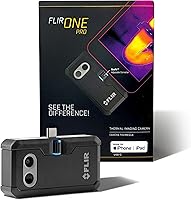
Does an iPhone Have a Thermal Camera?
No, an iPhone does not have a built-in thermal camera. You need a compatible infrared camera attachment and its app to view heat patterns and measure surface temperatures.
On this page (8 sections)
- Does an iPhone have a thermal camera built in?
- How does a phone thermal camera work?
- What should you check before choosing an iPhone thermal camera?
- Which iPhone thermal camera attachment suits your work?
- How do you set up and care for an iPhone thermal camera?
- What mistakes make home thermal images misleading?
- Can a phone thermal camera see through walls?
- Does your iPhone need a thermal camera attachment?
No, an iPhone does not have a built-in thermal camera. To see heat patterns or measure surface temperatures, you need a compatible infrared camera attachment and its app.
The useful buying question is which attachment fits your phone and the job. Finding a broad cold patch near a window needs less detail than comparing small components, while guided home checks may matter more than extra image controls.
Does an iPhone have a thermal camera built in?
An iPhone's built-in cameras do not provide thermal imaging. Its regular camera records visible light, while thermal imaging requires a sensor that detects infrared energy from surfaces.
Depth features and a filter that paints a photo in bright colors don't supply that sensor. A convincing heat-style image is not a temperature measurement.
Your regular camera still helps with documentation. Save a normal photo beside the thermal image so you can find the same wall, pipe, or window corner later.
Does an iPhone have a thermal camera with an app alone?
An app alone cannot add thermal sensing. A real thermal accessory supplies the infrared sensor, and its companion app displays the readings.
Choose the accessory before downloading an app. Check that its required app is available for your phone and supports your operating system, rather than assuming any thermal app can control any camera.
How does a phone thermal camera work?
A phone thermal camera uses its own infrared sensor to capture surface temperature patterns. The attachment sends that information to an app, which turns it into an image and may let you save photos or video.
Some accessories add visible-light outlines to make objects easier to identify. These outlines help you locate a warm patch, but they don't add thermal sensor pixels.
For the underlying process, read how a thermal imaging camera works. Understanding the difference between the sensor and image processing makes resolution claims easier to compare.
Colors represent a temperature scale rather than an object's actual appearance. Read what the colors on a thermal camera mean before treating a bright patch as a fault.
What should you check before choosing an iPhone thermal camera?
Start with phone compatibility, target size, and app features. These determine whether you can connect the camera, see enough detail, and save useful evidence.
- Exact phone support: Match your model and operating system, not just the word “iPhone.”
- Connector and case fit: Confirm USB-C or Lightning support and enough clearance around your case.
- Native resolution: Compare the sensor's actual pixel count before comparing enhanced output sizes.
- Inspection tools: Decide whether guides, video, temperature graphs, or visible-light detail will help your work.
- Measurement limits: Check accuracy conditions separately from the full temperature range.
Higher native resolution helps separate smaller areas within a scene. Enhanced images can improve clarity, but their output dimensions aren't the same as the sensor's native resolution.
A wide temperature range matters when your targets require it. For drafts and room surfaces, it is usually less useful than clear images, suitable app tools, and repeatable scanning conditions.
Our guide to thermal camera resolution and range explains those tradeoffs. The best thermal camera for iPhone guide compares attachments, while the thermal cameras for home use guide covers broader choices.
Which iPhone thermal camera attachment suits your work?
Choose the TC001 Max for visible-light context and connector flexibility, the FLIR ONE Pro for guided checks, or the TC002C Duo for USB-C use with temperature graphs. Confirm exact device support before choosing any of them.
TOPDON TC001 Max: for mixed devices and clearer outlines
The TOPDON TC001 Max suits readers who want to recognize objects easily while scanning. Its dual-lens design combines thermal imaging with a visible-light camera, which helps place a heat pattern on the correct edge or component.
It includes USB-C and Lightning adapters and supports selected iPhones, Android devices, and Windows devices. That makes it worth considering for a household with different devices, but confirm each device rather than assuming the adapters guarantee support.
The native thermal resolution is 256 × 192, enhanced to 512 × 384 with TOPDON's TISR processing. Its 25 Hz refresh rate supports a smoother view as you move across a surface.
The TopInfrared or TopView apps offer photos, video, temperature trend graphs, and 3D temperature analysis. Those tools suit repeat checks where you want more than a single saved image.
Skip this model if you want a separate screen and controls. It relies on a connected device, and its battery-free operation draws on that device's power.
FLIR ONE Pro: for guided home checks on newer iPhones
This FLIR ONE Pro suits iPhone 15 and newer users with USB-C who want help following an inspection process. The FLIR ONE app includes step-by-step guides for common home faults, including air leaks and moisture buildup.
Its native thermal resolution is 160 × 120, with VividIR processing producing 480 × 360 output. MSX adds visible edge and outline details, helping you identify the object associated with a heat pattern.
The adjustable OneFit connector accommodates many phone cases. FLIR also specifies resistance to a 1.5 m drop, a useful feature for frequent work around a home or jobsite.
Its stated accuracy is ±3°C or ±5% when the unit is within 15–35°C and the scene is within 5–120°C. Those conditions matter if you're comparing small temperature differences rather than simply locating warmer areas.
Skip this version if your iPhone uses Lightning or if native sensor detail is your main priority. Read our FLIR ONE Pro review for a closer look at its features and fit.
TOPDON TC002C Duo: for USB-C checks with temperature graphs
The TOPDON TC002C Duo suits readers who want USB-C connectivity and temperature tracking through the TopInfrared app. It supports photos, video, waveform views of temperature changes, and custom temperature limits.
Like the TC001 Max, it has 256 × 192 native thermal resolution, enhanced to 512 × 384, with a 25 Hz refresh rate. Choose between them based on connector needs and visible-light features rather than expecting a larger native thermal image from either one.
The Duo measures from -20°C to 550°C, with stated error of ±2°C or 2%. That range covers more than routine room-temperature checks, but it doesn't guarantee a safe approach distance to hot equipment.
Skip it for a Lightning iPhone unless TOPDON confirms a supported connection for your exact model. It also excludes Mac devices and currently carries an Android 16 restriction, which matters if you plan to share it across devices.
How do you set up and care for an iPhone thermal camera?
Install the correct companion app, check permissions, and connect the attachment without forcing the plug. Start with a well-charged phone and enough storage for your images.
Remove the phone case if it blocks a full connection. Hold the phone securely and avoid using the camera attachment as a handle, since that puts strain on the connector.
Let the image settle before saving a reading, and follow any calibration prompts. Begin with familiar room surfaces so you can learn the controls before investigating an unfamiliar heat pattern.
Keep the lens and connector clean and dry. Use lens-safe cleaning methods recommended by the manufacturer, protect the attachment during storage, and avoid touching the lens with your fingers.
For repeat checks, keep your distance, angle, and operating conditions similar. Label saved images with the location and conditions so a later comparison has useful context.
What mistakes make home thermal images misleading?
The biggest mistakes are trusting colors alone, reading reflections as heat, and assigning a cause too quickly. A thermal image shows a pattern that needs context.
Automatic color scaling can make a small temperature difference look dramatic. Compare the temperature scale and readings before deciding that a bright area is unusually hot.
Shiny metal can reflect infrared energy from nearby objects, including you. Change your viewing angle to see whether a suspicious patch shifts, and avoid treating its displayed temperature as reliable without further checks.
Sunlight, recent heating, and air-conditioning cycles can also change surface patterns. For draft checks, an indoor-to-outdoor temperature difference helps, while direct sun on the wall can complicate the picture.
Keep covers on electrical equipment and avoid exposed wiring or hot components. Ask a qualified professional to investigate suspected electrical faults rather than using an image to judge safety.
Start with how to use a thermal camera at home for a more useful scanning routine.
Can a phone thermal camera see through walls?
A phone thermal camera cannot see through walls. It detects the surface facing it, so a cool wall patch doesn't reveal a pipe or confirm moisture behind the wall.
Use the image to choose where to investigate next. A possible damp area needs other evidence, and a suspected insulation gap should be checked against weather, airflow, and the room's heating conditions.
Read whether a thermal camera can see through walls before drawing conclusions about hidden objects.
Does your iPhone need a thermal camera attachment?
If you're asking “does iPhone have a thermal camera?” before checking drafts or heat patterns, a compatible attachment is the next step. If you only want colorful photo effects, the regular camera and an editing app are enough.
Pick the TC001 Max for visible-light context and included connector options. Choose the USB-C FLIR ONE Pro for guided home checks, or the TC002C Duo for compatible USB-C devices and temperature graphs.
For a single unexplained patch, consider whether professional inspection would answer your question more directly. If you'll make repeated checks, use our best thermal camera for iPhone guide to narrow the options, then revisit how thermal imaging works before interpreting your first images.
Frequently asked questions
Does any iPhone have a built-in thermal camera?
No, an iPhone does not have a built-in thermal camera. To view heat patterns, you need a separate infrared camera attachment and a supported app, so check your exact phone model, connector, and operating system before choosing an accessory for your home checks.
Can an iPhone camera app show heat?
An app alone cannot measure surface temperatures through an iPhone's regular camera. Some apps apply heat-style colors to ordinary photos, but real thermal imaging needs an external infrared sensor, with the app displaying and saving the information that sensor captures.
Do iPhone thermal cameras work through walls?
No, an iPhone thermal camera reads the surface facing it rather than seeing through a wall. A cooler patch might guide a closer check for moisture or missing insulation, but the image cannot confirm either cause without other evidence, such as a moisture reading or inspection.
Which iPhones work with a thermal camera attachment?
Support depends on the exact attachment, connector, and app. The USB-C FLIR ONE Pro covered here supports iPhone 15 and newer, while the TOPDON TC001 Max includes USB-C and Lightning adapters, so check support for your particular phone rather than relying on the connector alone.